 Create a line on a principal axis
Create a line on a principal axis
Create a line on a principal axis
On the Curve toolbar, click Line  , or choose Insert→Curve→Line, to open the Line dialog box.
Click to select a start point for the new line and drag the cursor.
An inferred plane and a preview line appear as you drag the cursor.

Drag the cursor until the preview line snaps to the X axis and the X label appears.
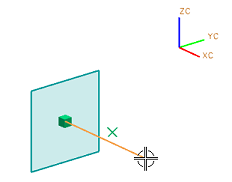
Click to set the direction of the line to the axis.
The line locks to the X axis and the autoplane changes to match the XC-YC plane.

Change the line limits by dragging the start and end handles, or by typing values in the on-screen input box or dialog box.
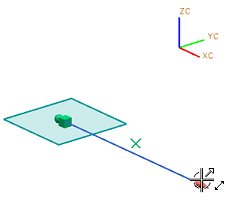
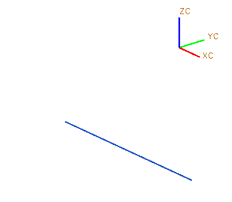
Click OK or Apply to create the line.

Inferred: Option that allows the software to determine the method to use for a given operation. Dimensions, planes, vectors, and points can be created by letting the software infer an appropriate method. The Inferred method is often the default method.