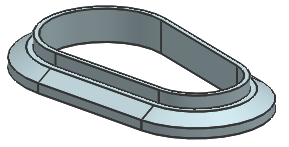
Create a chamfer with asymmetric offsets
Create a chamfer with asymmetric offsets
Create a chamfer with asymmetric offsets
|
How To |
This example shows how to create a chamfer with asymmetric offset distances.
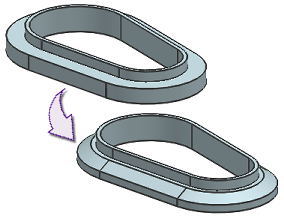
On the Feature toolbar, click Chamfer or choose Insert→Detail Feature→Chamfer.
In the Chamfer dialog box, Select Edge (0) is active.
In the graphics window, select the edges to chamfer.
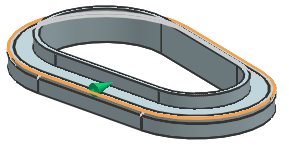
In the Offsets group, from the Cross Section list, select Asymmetric.
In the Distance 1 box, type the first offset distance value.
For this example, a value of 15 is used.
In the Distance 2 box, type the second offset distance value.
For this example, a value of 25 is used.
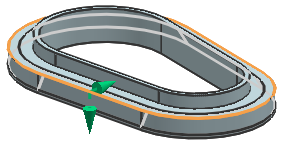
(Optional) If the offset distances are measured on the wrong side of the selected edges, click Reverse Direction  .
.
Click OK or Apply to create the chamfer.