 Create a General Hole feature
Create a General Hole feature
Create a General Hole feature
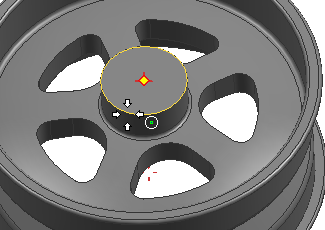
This example shows how to create a General Hole feature at the center of circular edge.
On the Feature toolbar, click Hole or choose Insert→Design Feature→Hole.
In the Hole dialog box, from the Type list, select General Hole.
On the Selection bar, make sure that Arc Center  is selected.
In the graphics window, click on the cylindrical edge to select the arc center.
In the Form and Dimensions group, from the Form list, select the form.
For this example, Countersunk is selected.
In the Dimension group, enter values for C–Sink Diameter, C–Sink Angle, and Diameter.
For this example, the Depth Limit list is set to Through Body.
|
|
Click OK to create the General Hole feature.
|
|
|
|
|
Note:
For the dimensions of other General Holes, see


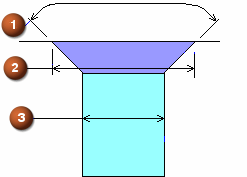
 Countersink angle
 Countersink diameter
 Hole diameter